Resource Library : Tutorials
Connect Claude to AtScale
This guide connects Claude Desktop or Claude Code to AtScale via MCP. Once connected, Claude will have access to AtScale’s models, enabling you to ask questions about your business data in natural language and get answers built from your own metric definitions.
This guide connects Claude Desktop or Claude Code to AtScale via MCP. Once connected, Claude will have access to AtScale’s models, enabling you to ask questions about your business data in natural language and get answers built from your own metric definitions.
Before you start
You need:
- Claude Desktop and/or Claude Code installed, and you are signed in
- An AtScale instance available to open ports with MCP server enabled.
- Admin or application_admin role assigned in the AtScale Identity Broker
- At least one published model in AtScale
- Credentials with read access to that model
Don’t have an AtScale environment yet? Book a demo.
Get your AtScale Client Secret and Remote MCP URL
Get your Client Secret:
In AtScale, go to Security → Clients → atscale-mcp → Credentials and copy the Client Secret.
! Do not regenerate the client secret !
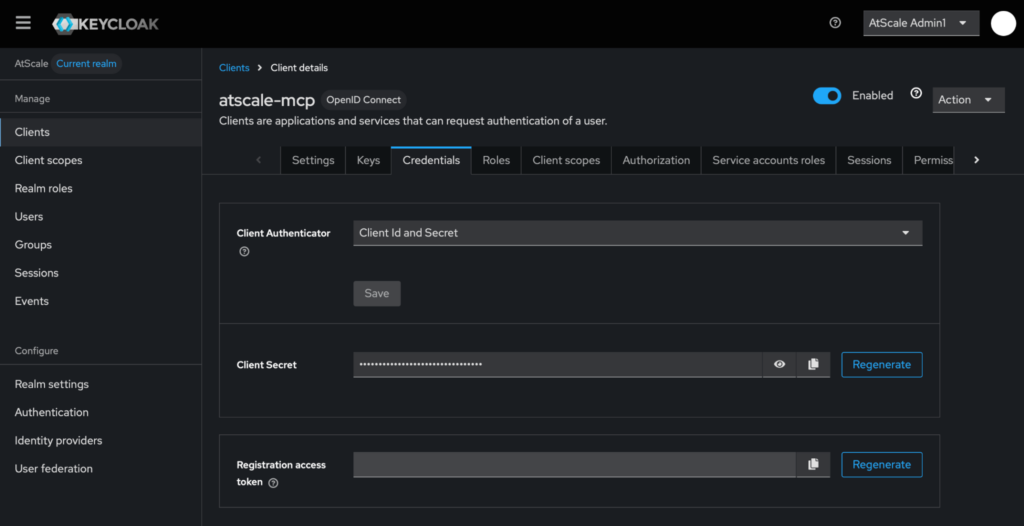
A note on the Client Secret. You’ll sign in to AtScale through your browser. Cursor never sees your password, and AtScale resolves you to your own role, so you see exactly the models, columns, and rows your account permits.
Get your Remote MCP server URL:
In AtScale, go to Security → Clients → atscale-mcp.
Scroll down to Access Settings where you will see your Root URL. Your Remote MCP server URL is your Root URL with “/mcp” added to the end. For example: https://atscale.example.com/mcp
Connect Claude Code to AtScale MCP
- Copy your atscale-mcp client secret and remote MCP server URL (the ones from above).
- In your terminal, add the AtScale MCP server:
claude mcp add –transport http –scope user \–client-id atscale-mcp \
–client-secret \
atscale https://atscale.example.com/mcp
Replace the URL with remote AtScale MCP server URL, with /mcp on the end.
–client-secret takes no value. Claude Code prompts for it with masked input and stores it in your system keychain, not in your config file.
–scope user makes the connection available in every project. Drop it to scope the server to the current project only.
- Start a session by running claude, then run /mcp.
- Select atscale and authenticate. Your browser opens to the AtScale login. Sign in and approve.
- Run /mcp again to confirm the server shows as connected with its tools list
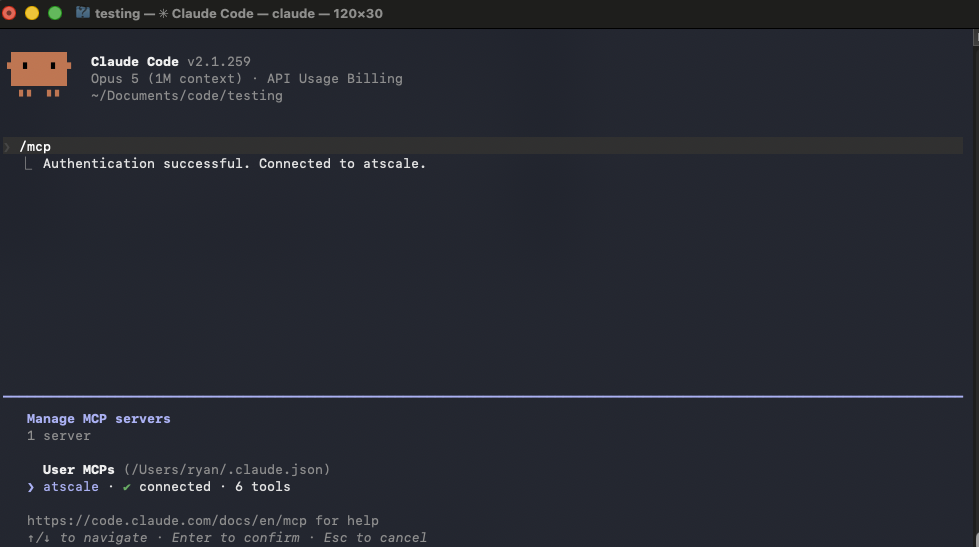
If your AtScale instance pins OAuth redirect URIs, add –callback-port 8080 to the command above and register http://localhost:8080/callback on the atscale-mcp client. Claude Code otherwise picks a random port, and the callback won’t match.
The client secret can only be set when you add the server. To change it, run claude mcp remove atscale and add it again.
In Claude code ask:
What AtScale models and measures do you have access to?
You should get back a list of any models you have deployed, and a list of measures and dimensions.
Connect Claude Desktop to AtScale MCP
- Login to Claude Desktop
- Go to Settings > Connectors
- Click Add custom connector
- In the Add custom connector dialog, complete the following fields:
- Name: Enter a name for the connector.
- Remote MCP server URL: Enter the URL for the AtScale MCP Server. This should be the URL for your AtScale instance, with /mcp added to the end. For example: https://atscale.example.com/mcp
- Open Advanced settings and complete the following fields:
- OAuth Client ID: Enter the name of the client. This should be atscale-mcp.
- OAuth Client Secret: Enter the atscale-mcp client secret you copied above.
- Click Add
- Click Connect next to your connector
- If you are not currently logged in to AtScale, you are redirected to your instance. Enter your login credentials when prompted.
Confirm the connection
Ensure that the AtScale MCP is enabled in the session.
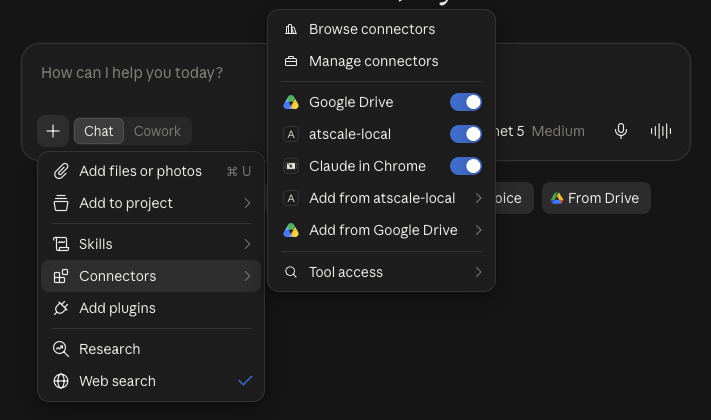
Ask:
What AtScale models and measures do you have access to?
You should get back a list of any models you have deployed, and a list of measures and dimensions.
Ask your data a question
Claude now has access to your models. Start with something you can check: a metric you’d recognize from a dashboard or report.
What was total [your metric] for [period]?
Compare the answer to what your BI tool reports. They should match, because both are reading the same definition from the same model.
Now ask something that you couldn’t ask on a dashboard.
Where do we have opportunities to improve efficiency?
Claude plans an approach, runs several queries against your model, and reasons over the results. This type of analysis would take a lot of clicking and pivoting in Excel or Power BI. Now, Claude brings the reasoning, your model brings the definitions.